How to Delete Photos from Amazon Photos?

Managing your digital photo library can quickly become overwhelming—especially if you rely on cloud services like Amazon Photos to store thousands of images and videos. While the platform offers convenient storage, automatic backups, and seamless syncing across devices, it’s just as important to keep your library organized by removing unwanted or duplicate photos.
Whether you’re freeing up space, decluttering your collection, or protecting your privacy, knowing how to properly delete photos from Amazon Photos is essential. However, many users are unsure about where deleted files go, how to permanently remove them, or how deletion affects synced devices.
In this guide, we’ll walk you through step-by-step methods to delete photos from Amazon Photos across different devices.
1. How to Delete Photos from Amazon Photos?
Deleting photos from Amazon Photos is straightforward, but the exact steps vary depending on whether you’re using a web browser, mobile app, or desktop app. Below are the most common methods.
1.1 Delete Photos via Web Browser
Using a browser is one of the easiest ways to manage large batches of photos.
Pas:
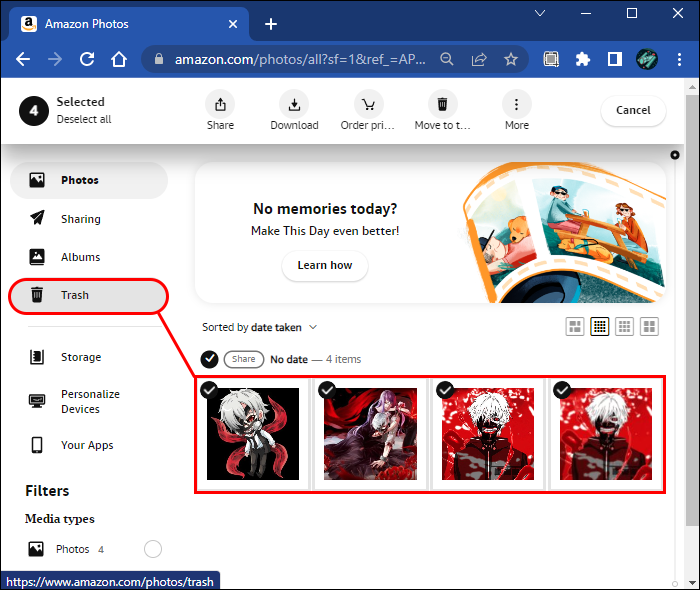
- Open the Amazon Photos website, sign in to your account, and head to the Photos tab to access your library.
- Hover over a photo and click the checkmark icon to select it.
- Select multiple photos if needed, then click the trash (delete) icon at the top of the screen.
Important Notes:
- Deleted photos are moved to the Poubelle folder.
- Items in Trash are automatically deleted permanently after 30 days .
- You can also empty the Trash manually to remove them right away.
1.2 Delete Photos on Mobile (iOS & Android)
The Amazon Photos mobile app makes it easy to delete images on the go.
Pas:
- Open the Amazon Photos app.
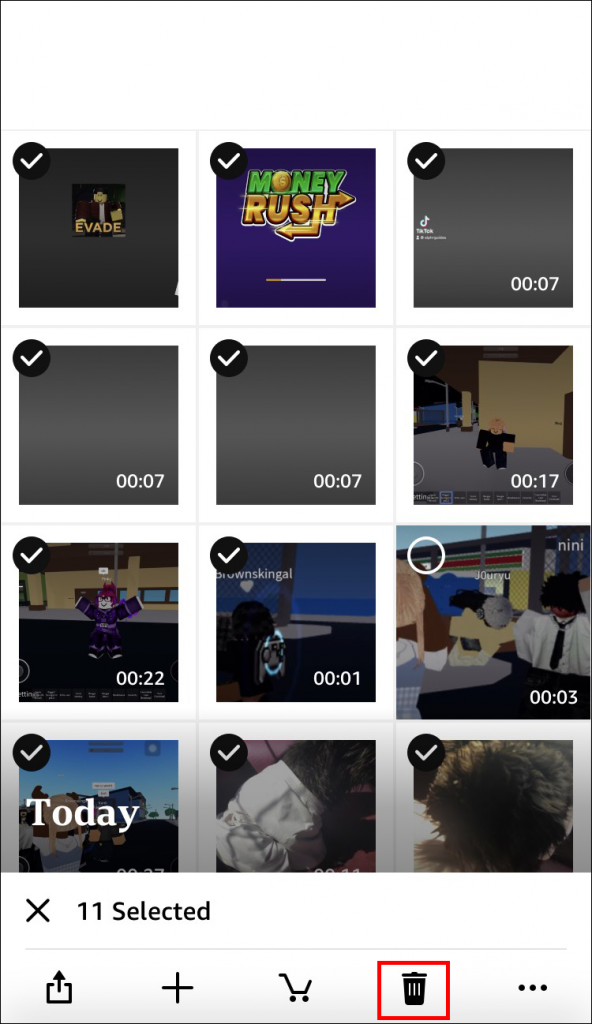
- Tap and hold a photo to select it; Select additional photos if needed.
- Appuyez sur le trash icon and confirm deletion.
Extra Tip:
- If auto-save is enabled, deleting a photo from Amazon Photos may also affect synced backups depending on your settings.
1.3 Delete Photos from Desktop App
If you’re using the Amazon Photos desktop app:
Pas:
- Open the app and log in.
- Locate the photo(s) you want to delete.
- Right-click and select Supprimer or use the trash icon, then confirm your action.
1.4 Permanently Delete Photos from Trash
Deleting photos once doesn’t completely remove them. To permanently delete:
Pas:
- Aller à la Poubelle folder and select the photos you want to remove permanently.
- Cliquez Delete Permanently and confirm the action.
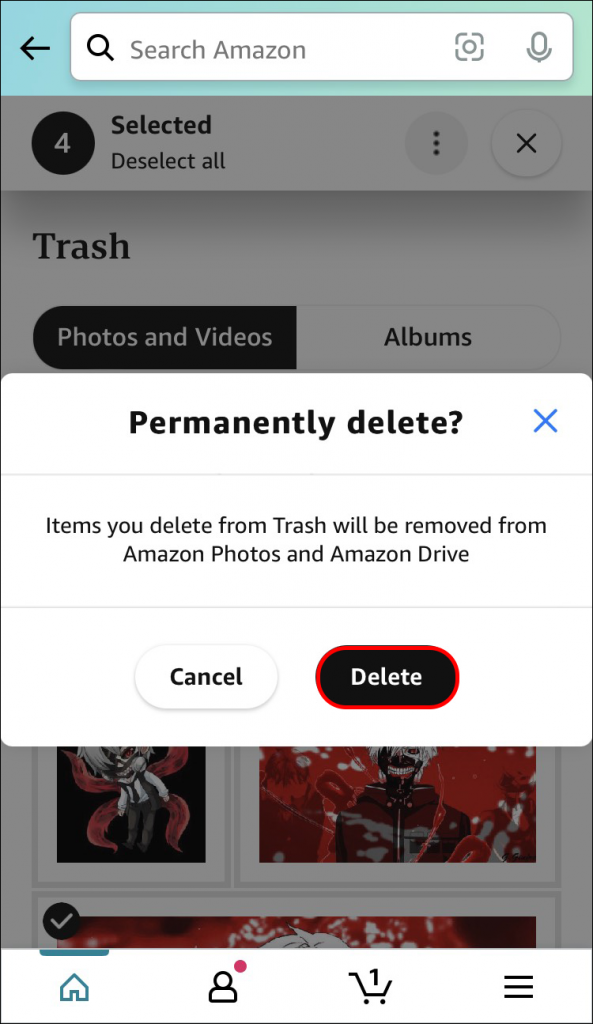
⚠️ Once permanently deleted, photos cannot be recovered.
1.5 Delete Entire Albums (Optional)
If you want to clean up albums:
- Aller à la Album section, choose and open the album.
- Cliquez sur le three-dot menu and select Supprimer l'album .
Note: Deleting an album does not delete the photos inside—it only removes the album organization.
2. Things to Keep in Mind Before Deleting
Before removing photos from Amazon Photos, consider the following:
- Backup first : Once permanently deleted, files cannot be recovered.
- Check synced devices : Deleting a photo may remove it across all synced devices.
- Shared content : If photos are shared, deletion may affect collaborators.
- Storage limits : Amazon Photos offers unlimited photo storage for Prime members, but video storage is limited.
3. Bonus: Backup Amazon Photos Before Deleting with Imaget
Before you start deleting photos, it’s a smart move to back them up—especially if you’re unsure whether you might need them later. This is where Imaget comes in handy.
Imaget is a powerful bulk image downloader that allows you to save entire collections of images from various platforms—including cloud-based galleries—quickly and efficiently.
Key Benefits of Imaget :
- Save multiple photos at once instead of downloading individually.
- Preserve original resolution and quality.
- Download images from a page, album, or list of URLs.
- Filter target photos based on the file resolutions and types.
- Export images in popular formats neatly for offline storage.
Main steps to backup/download all photos from Amazon photos:
- Installer et lancer Imaget Mac ou Windows version sur votre ordinateur.
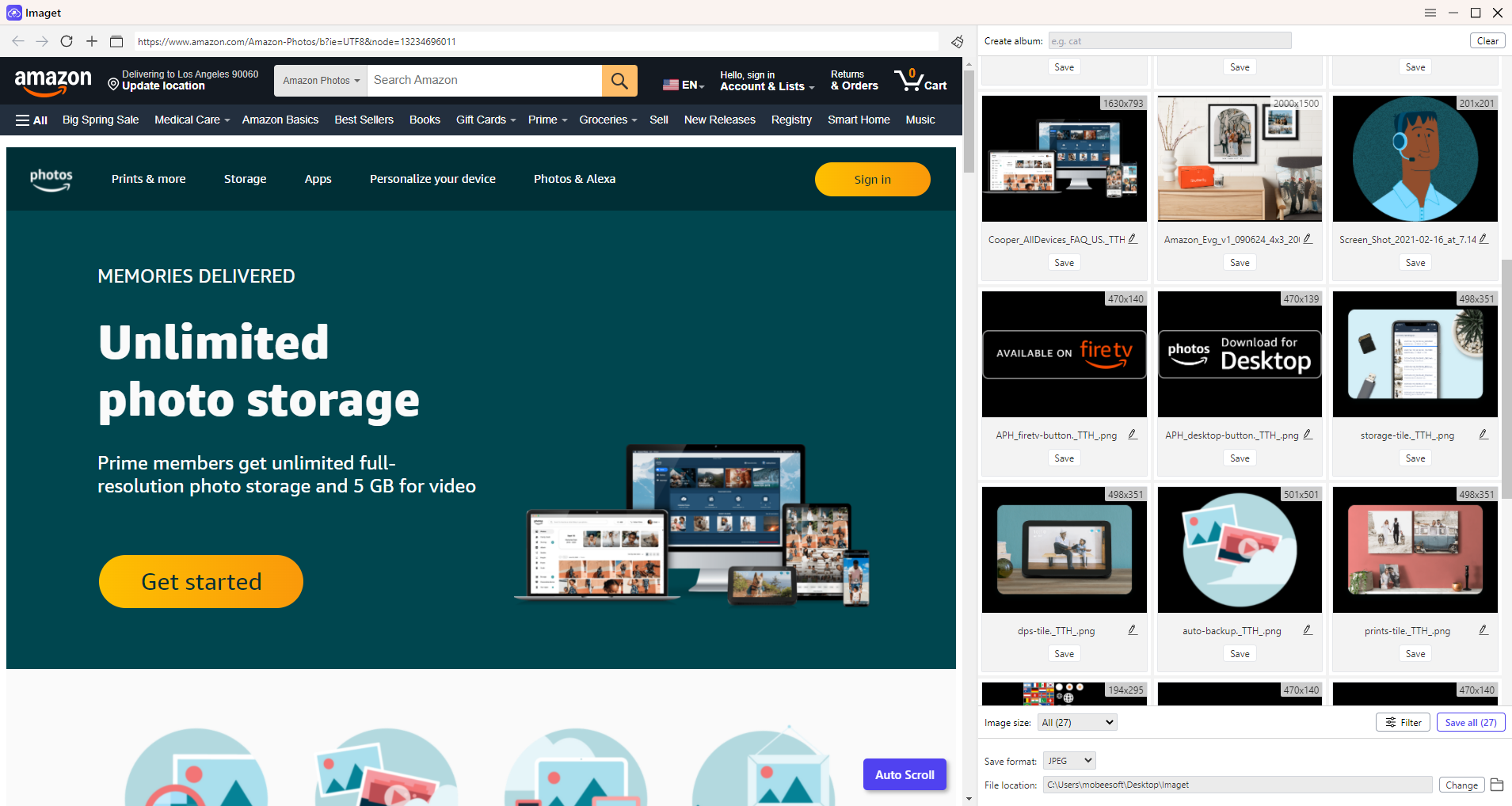
- Visit your Amazon Photos album or page inside Imaget , then let the tool scan and load all available images.
- Select the photos you want to back up; Create new albums or rename photos if needed.
- Cliquez Sauver tous to save all the chosen Amazon photos to your device.
4. Conclusion
Deleting photos from Amazon Photos is a simple yet important task for keeping your cloud storage clean and organized. Whether you’re using a web browser, mobile device, or desktop app, the platform provides flexible options to remove unwanted images. Just remember that deleted photos first go to the Trash and are only permanently removed after 30 days—or when you manually delete them.
However, before you start cleaning up, it’s always wise to back up your valuable memories. That’s why tools like Imaget are highly recommended. With its ability to bulk download high-quality images quickly and easily, Imaget ensures you never lose important photos—even if you delete them from the cloud.
If you’re planning to declutter your Amazon Photos library, combining proper deletion methods with a reliable backup solution like Imaget is the smartest approach.
- How to Use 4K Stogram to Download Instagram Photos?
- Comment télécharger des mangas nHentai ?
- Où lire et comment télécharger le manga Chainsaw Man ?
- Comment télécharger des mangas depuis MangaOwl ?
- Comment utiliser ImgHunt – Téléchargeur d'images en masse ?
- Comment trouver et télécharger des GIF Minecraft ?
- How to Use 4K Stogram to Download Instagram Photos?
- Comment télécharger des mangas nHentai ?
- Où lire et comment télécharger le manga Chainsaw Man ?
- Comment télécharger des mangas depuis MangaOwl ?
- Comment utiliser ImgHunt – Téléchargeur d'images en masse ?
- Comment trouver et télécharger des GIF Minecraft ?